SMS Campaigns: Campaign Types & When to Use Each
Learn about each campaign to utilize and when to use them.
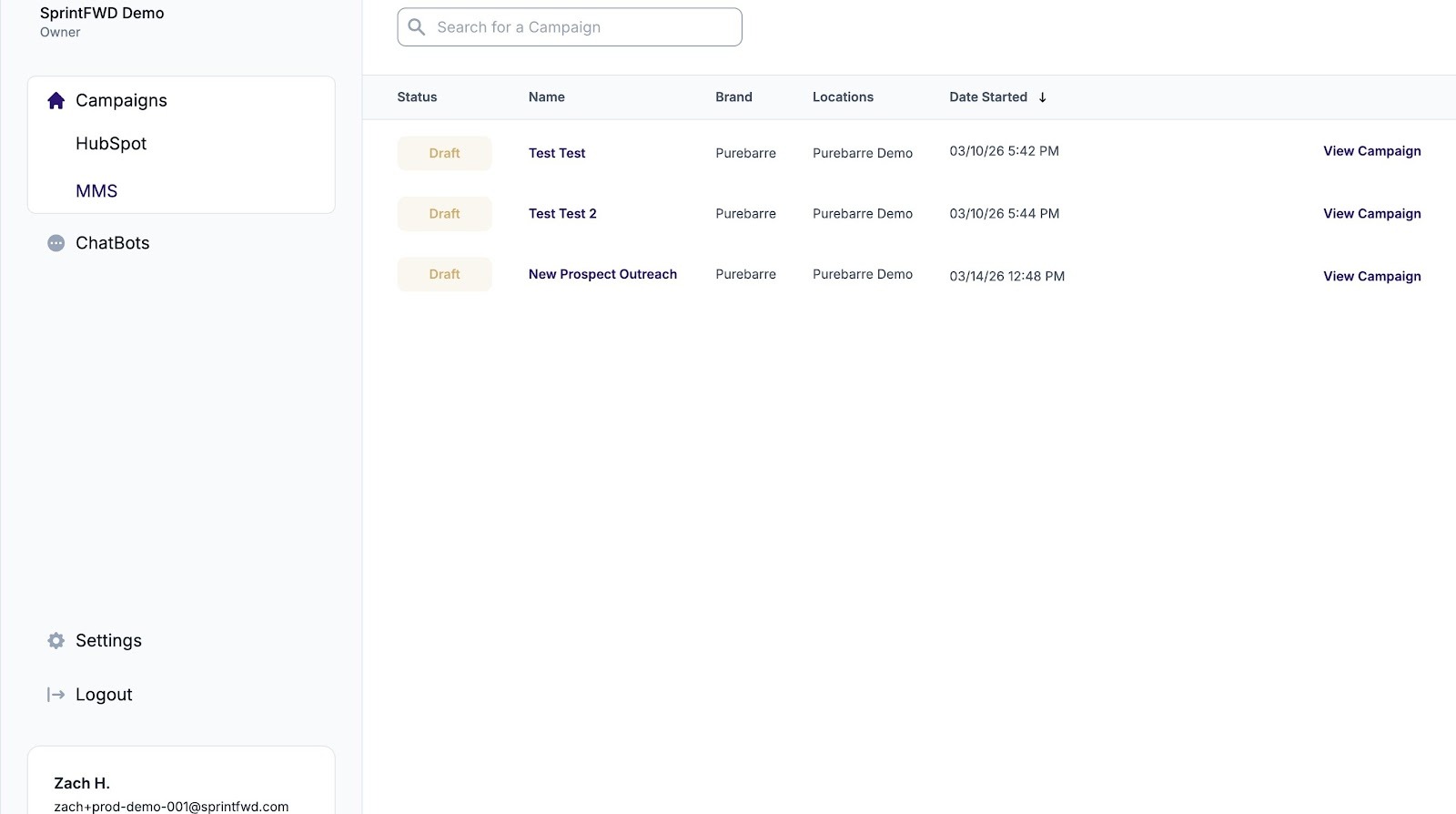
1. Navigate to your First Timers dashboard.
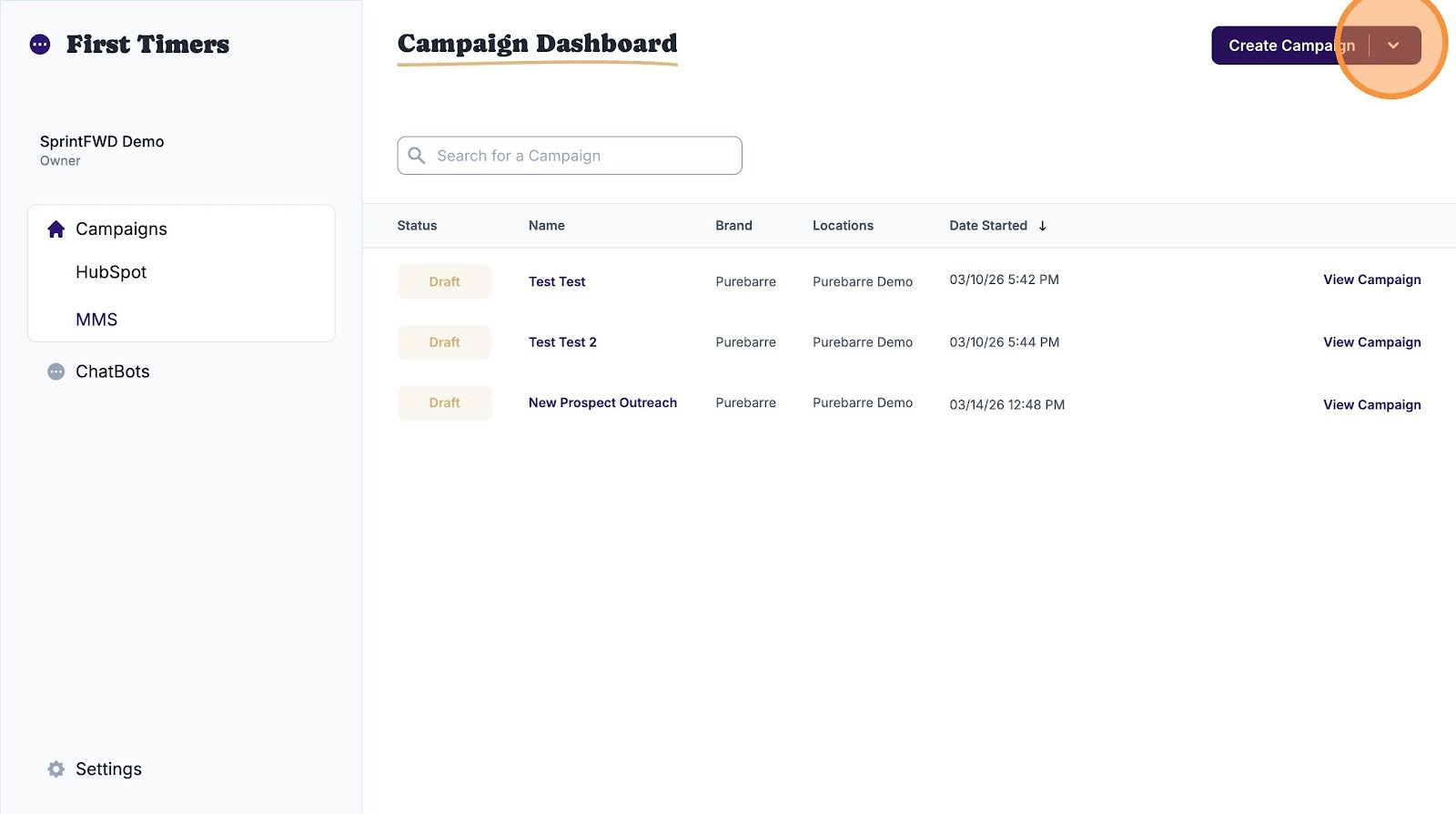
2. Click "Create Campaign."
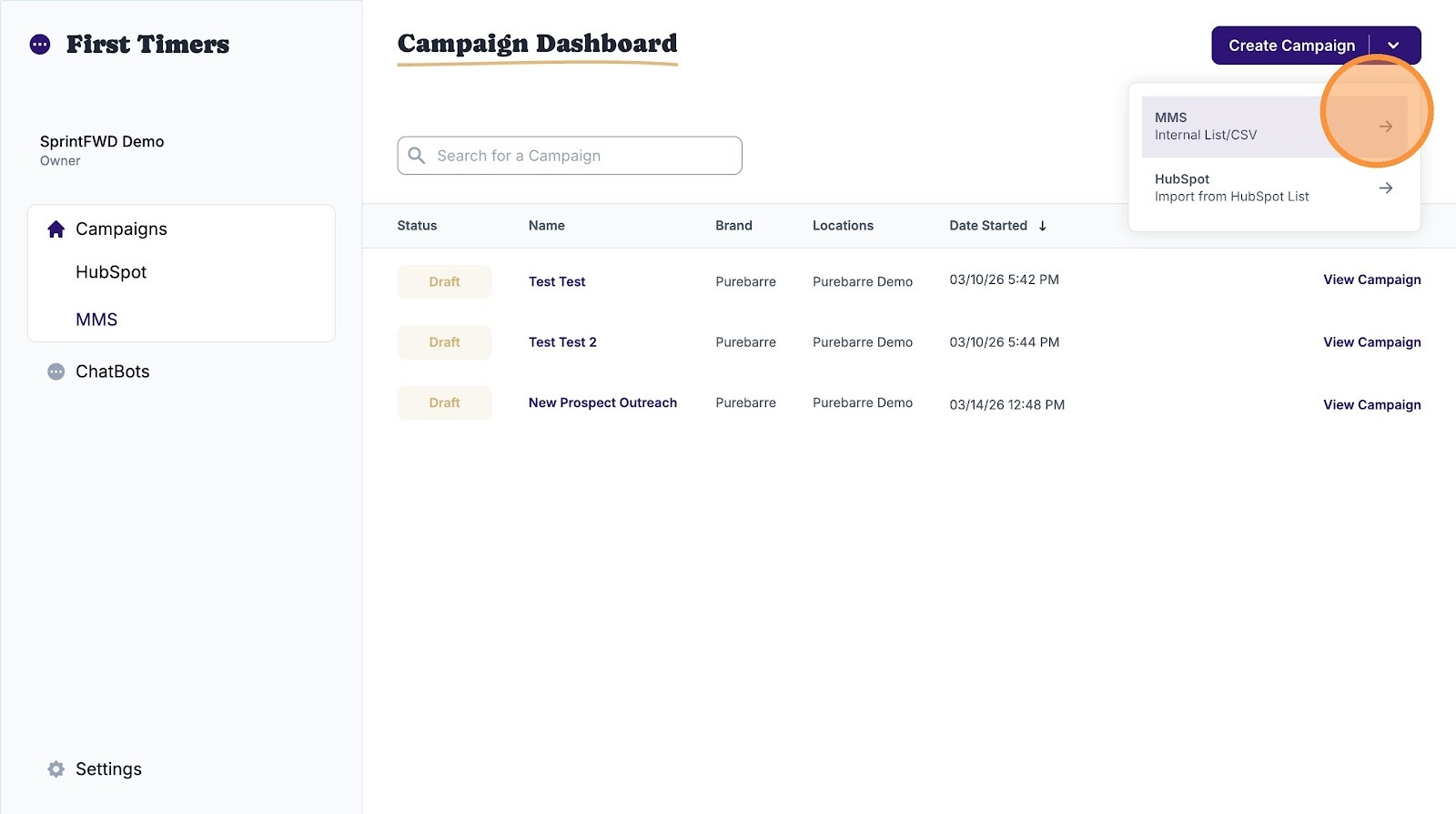
3. Click "MMS: Internal List/CSV."
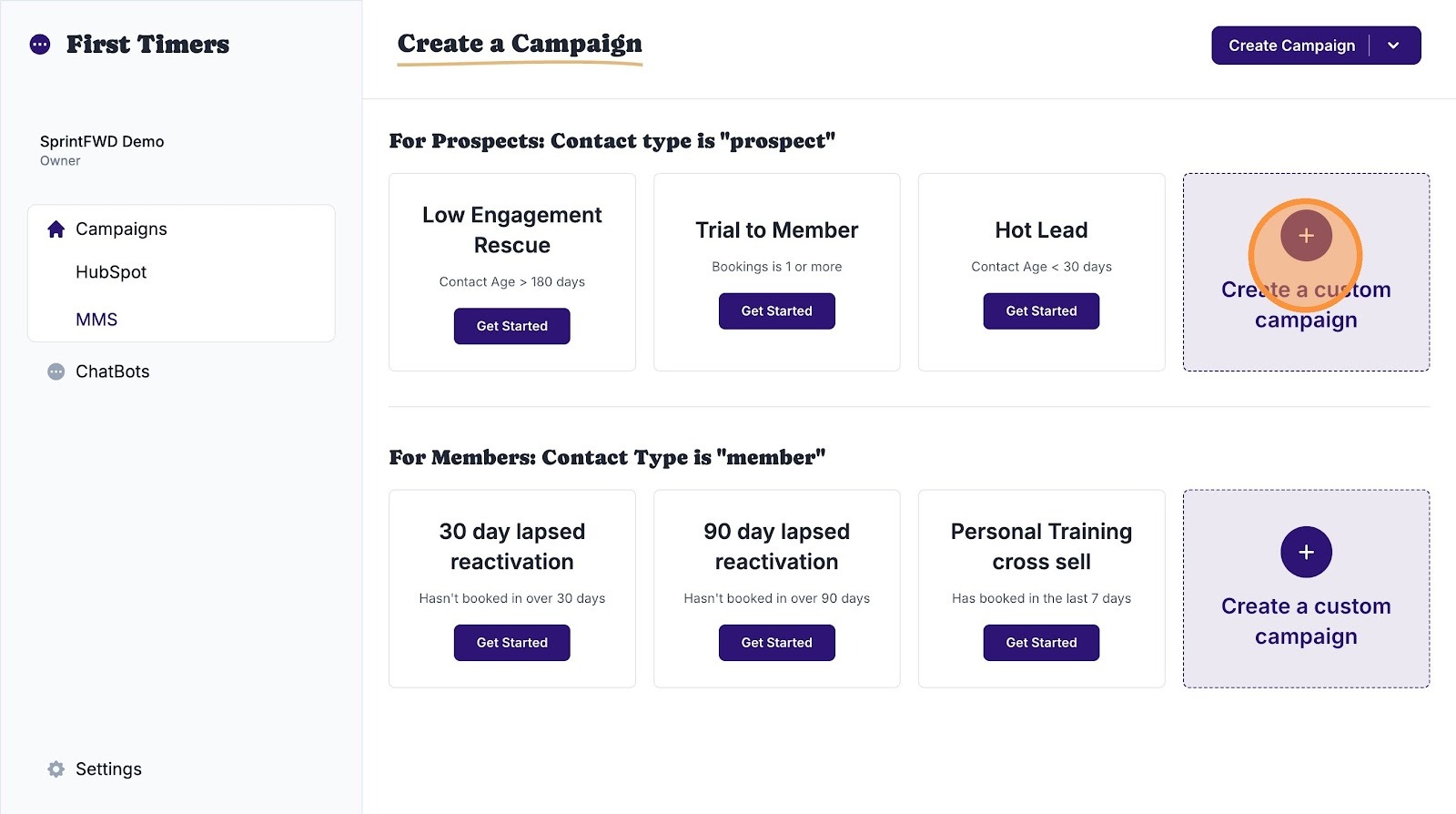
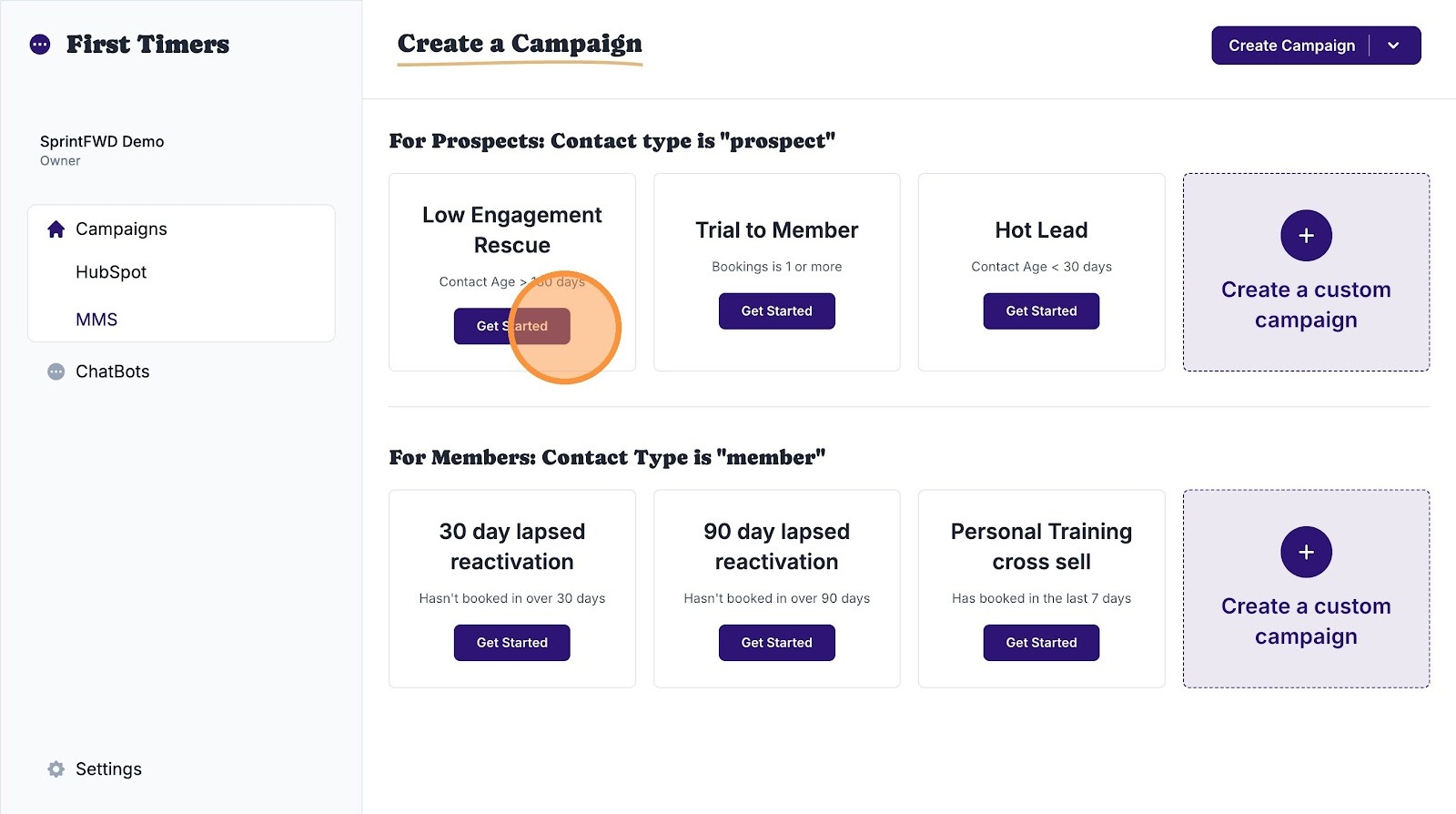
4. Let's start with prospects. If you're looking to engage previous leads who have not responded to prior outreach, or perhaps said they weren't interested in your services more than six months prior, click "Low Engagement Rescue."
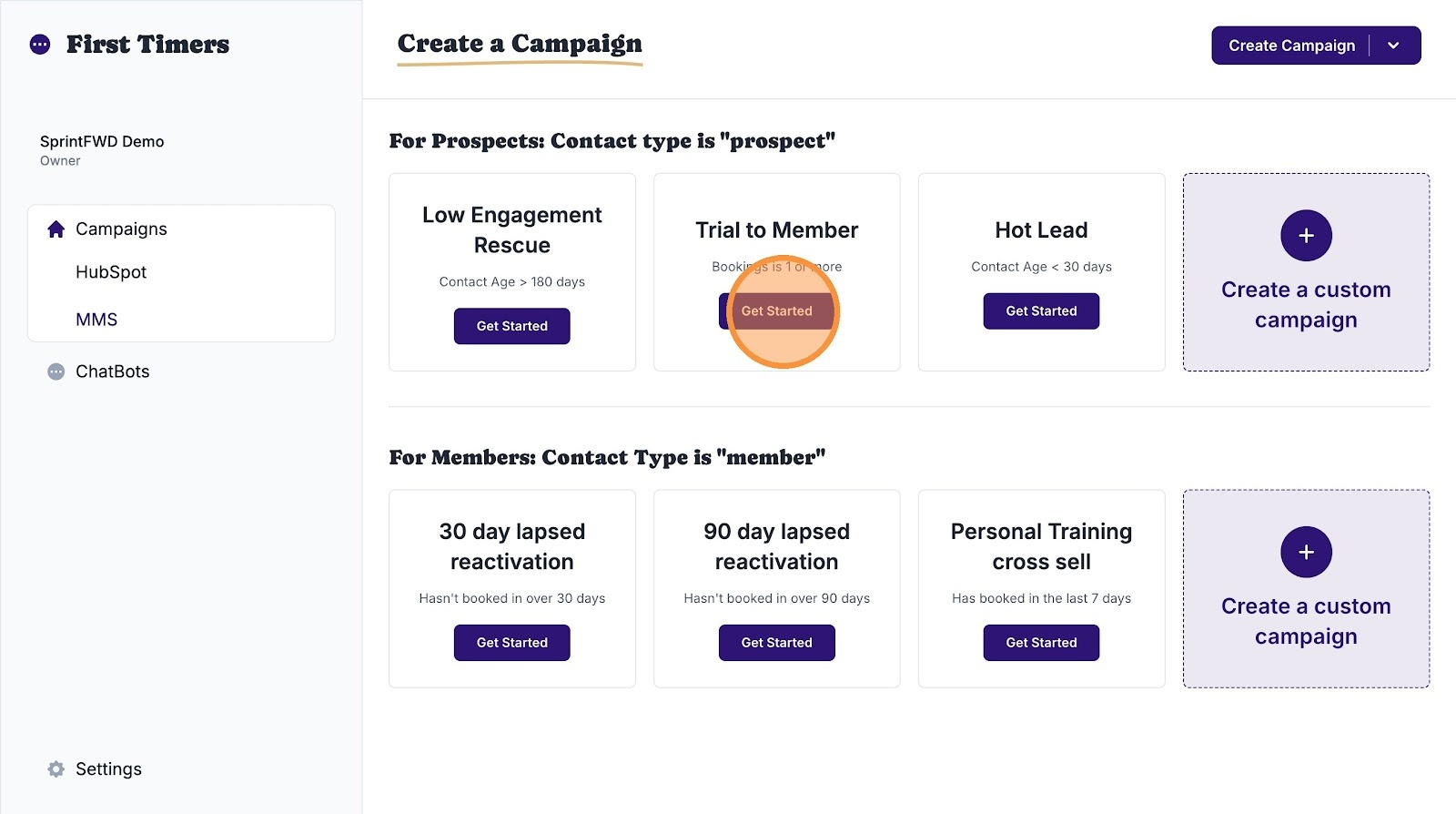
5. If you had a prospect express interest, but they've not signed up or scheduled a free trial session? They're probably on the fence -- and that's okay. Click "Trial to Member" to close that gap and get the prospect booked for their free session(s).
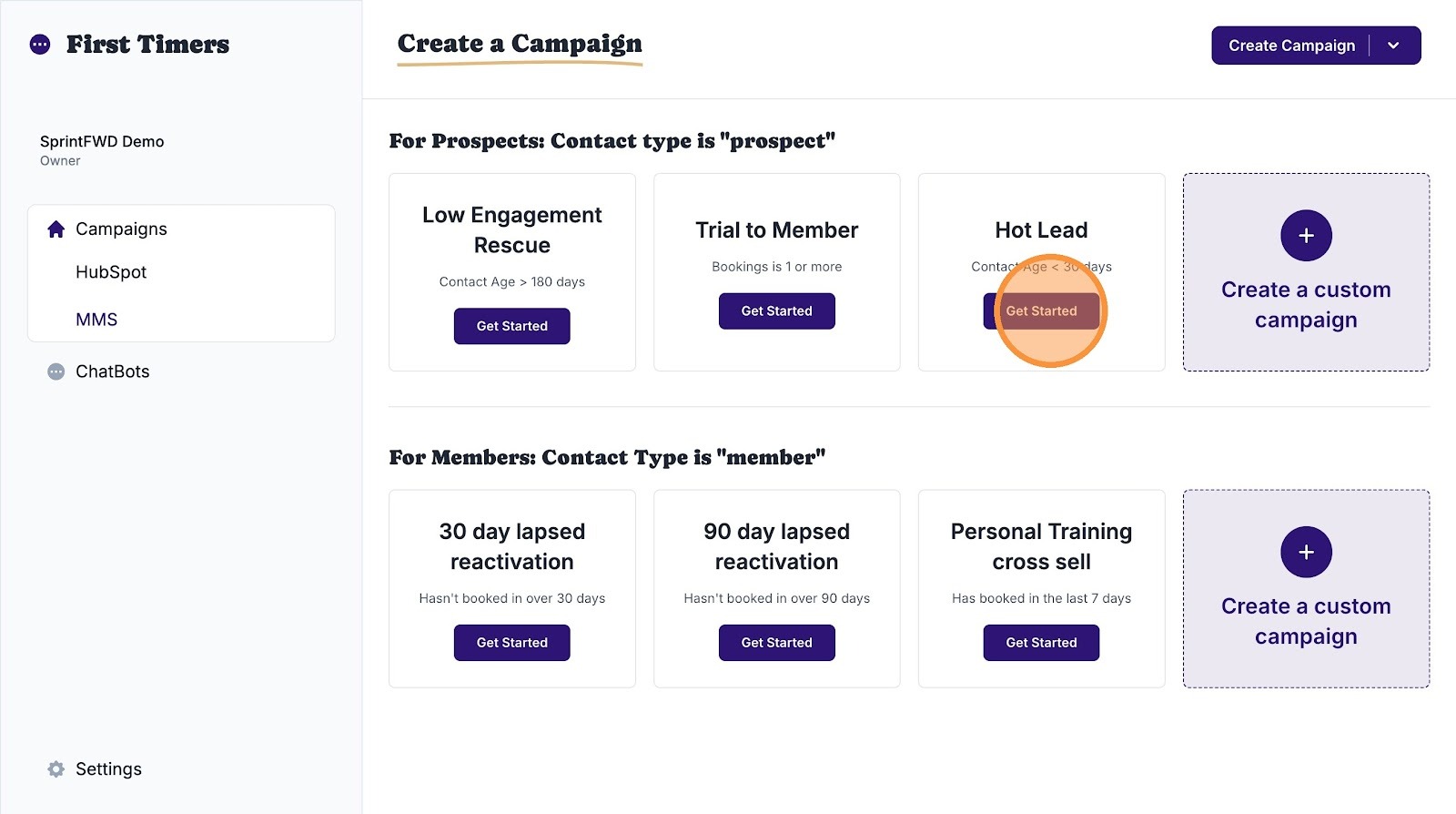
6. Have hot leads who provided all their contact information and our ready to buy? Click "Hot Lead" to engage those leads, get them booked, and close the conversion loop.
7. Now let's address existing members. For those members who've not booked a session in over 30 days, click "Get Started" to give them a gentle nudge.
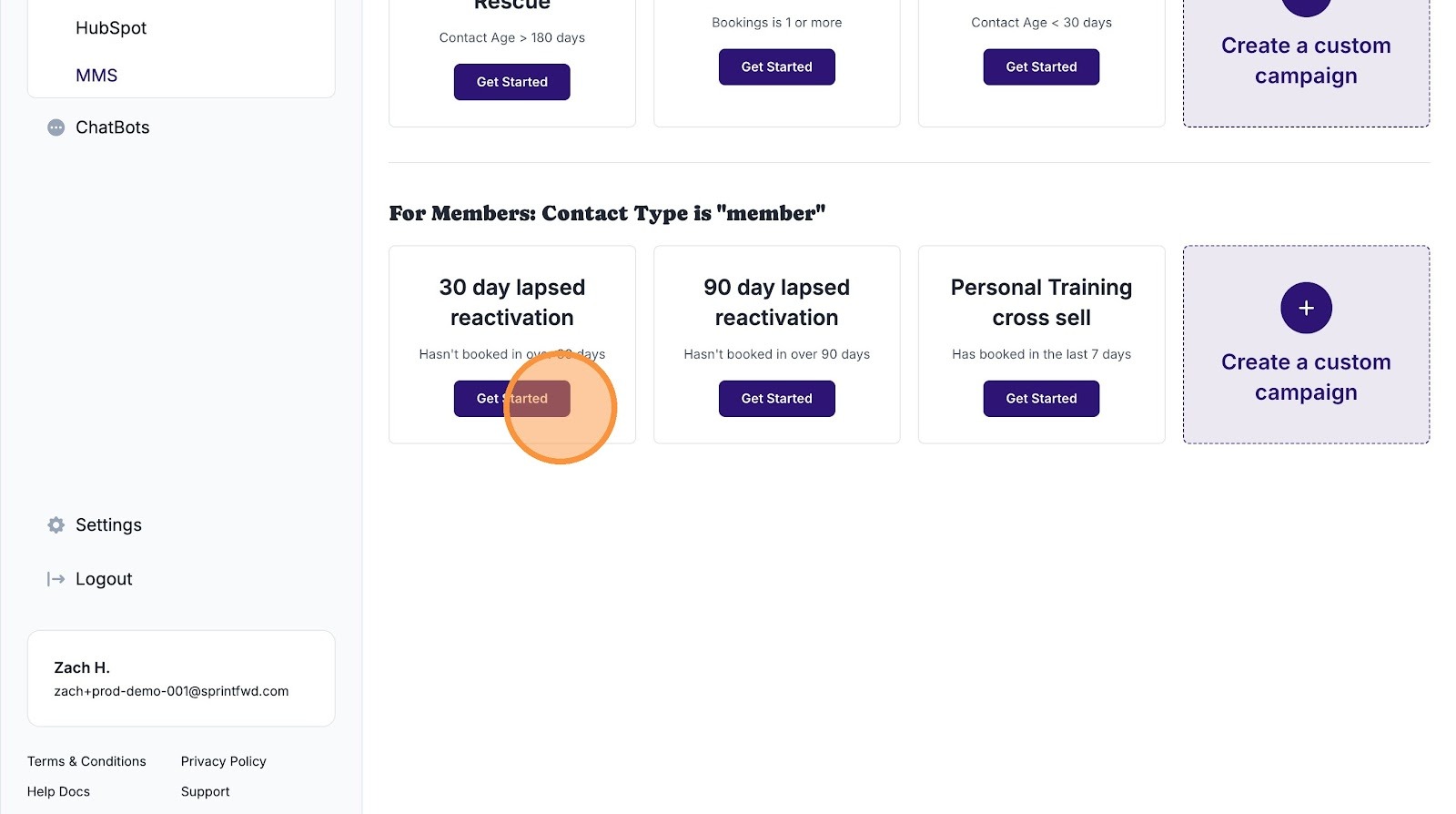
8. For those members who've not booked a session in over 90 days, click "Get Started" to re-enage cold members and proactively prevent member churn.
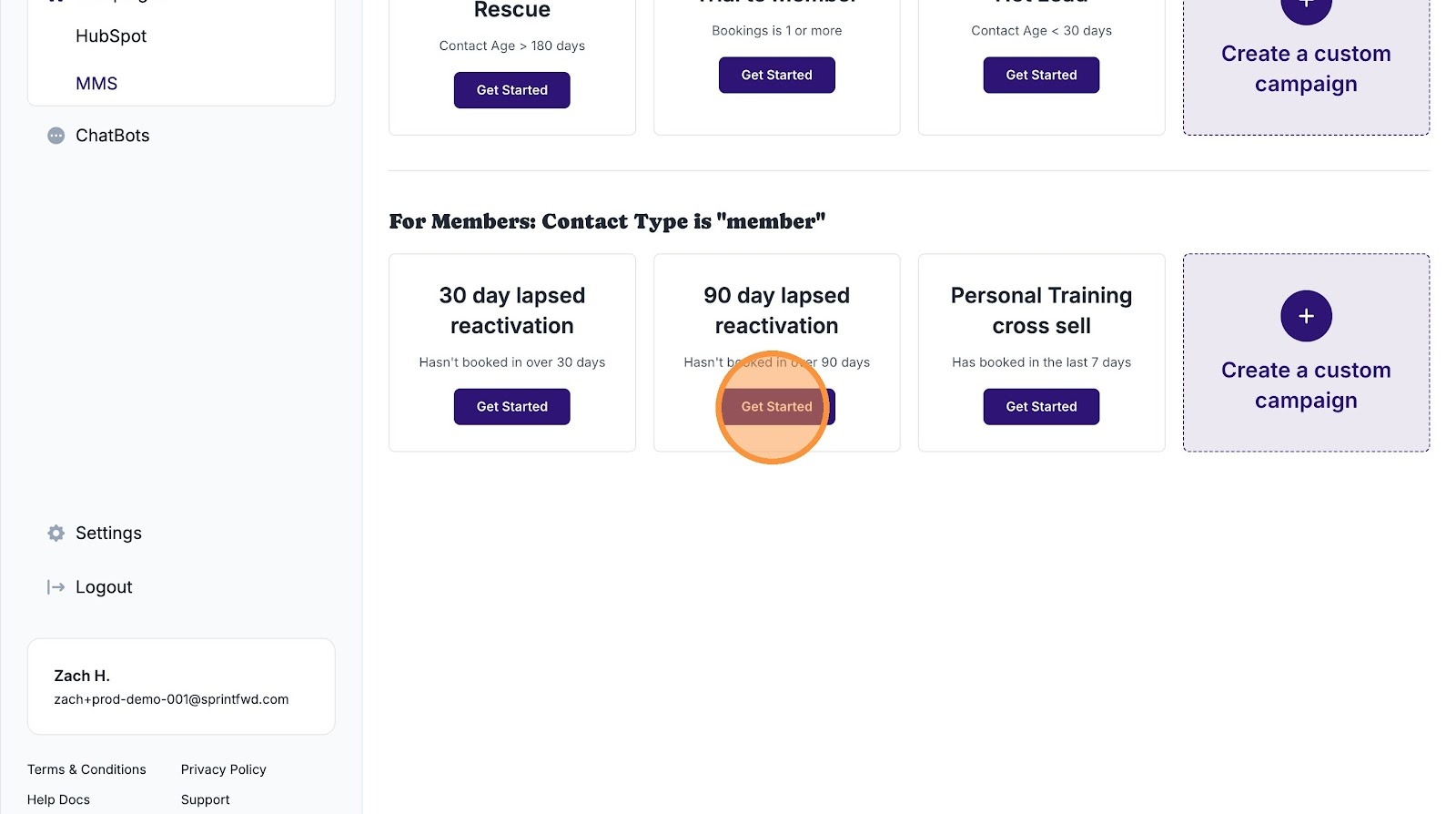
9. If you have active members who are highly engaged, click "Get Started" to engage them with a cross selling campaign. This can be personal training, recovery sessions, additional class offerings, etc. If you're looking to maximize lifetime value of each engaged member, this is the campaign to use.
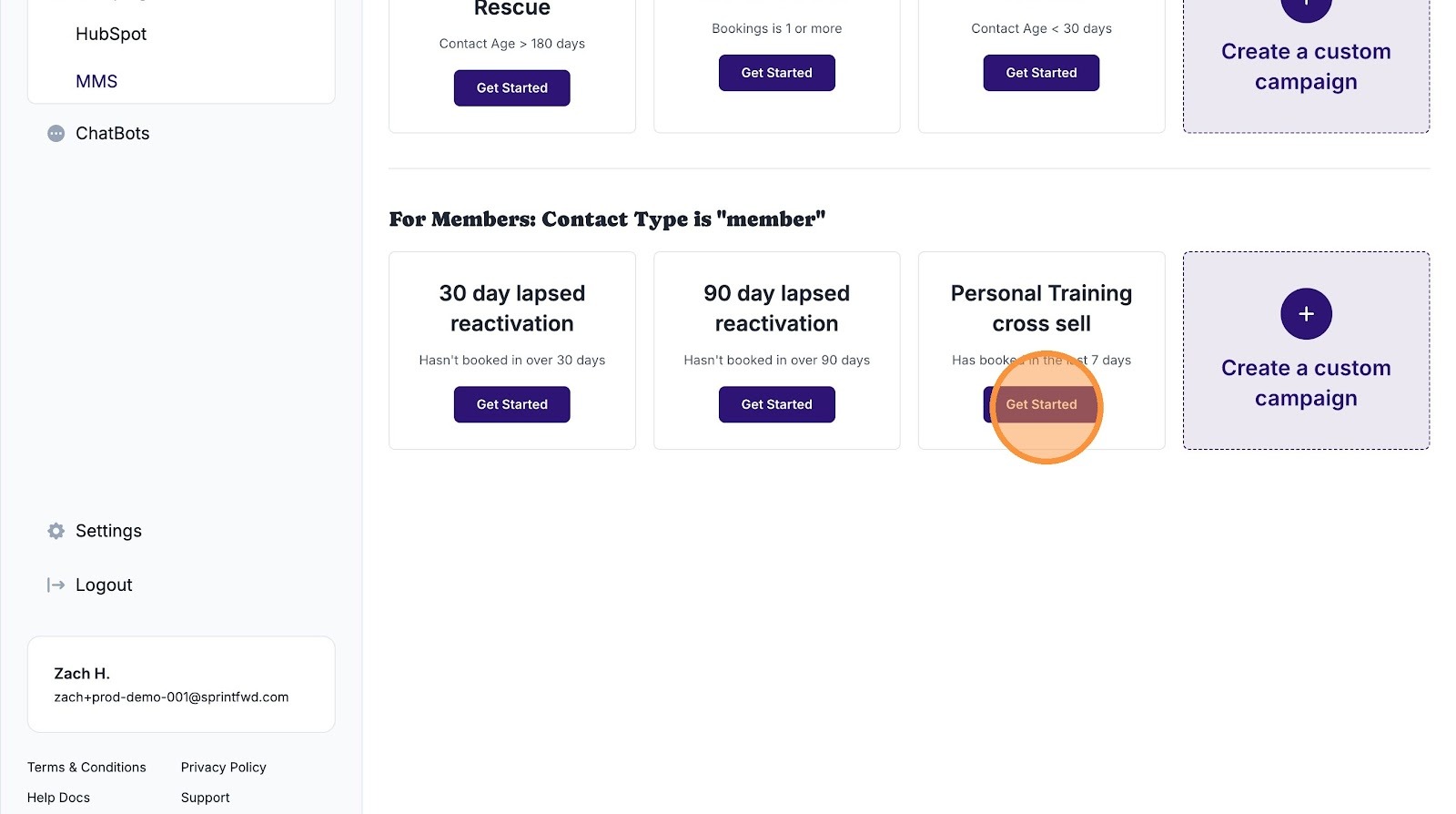
10. If you want to custom your outreach campaigns--for prospects and/or members--you can click "Create a custom campaign" and build out as you see fit. For instructions on how to do this, see our help article on how to create an SMS campaign.